Calendar overview
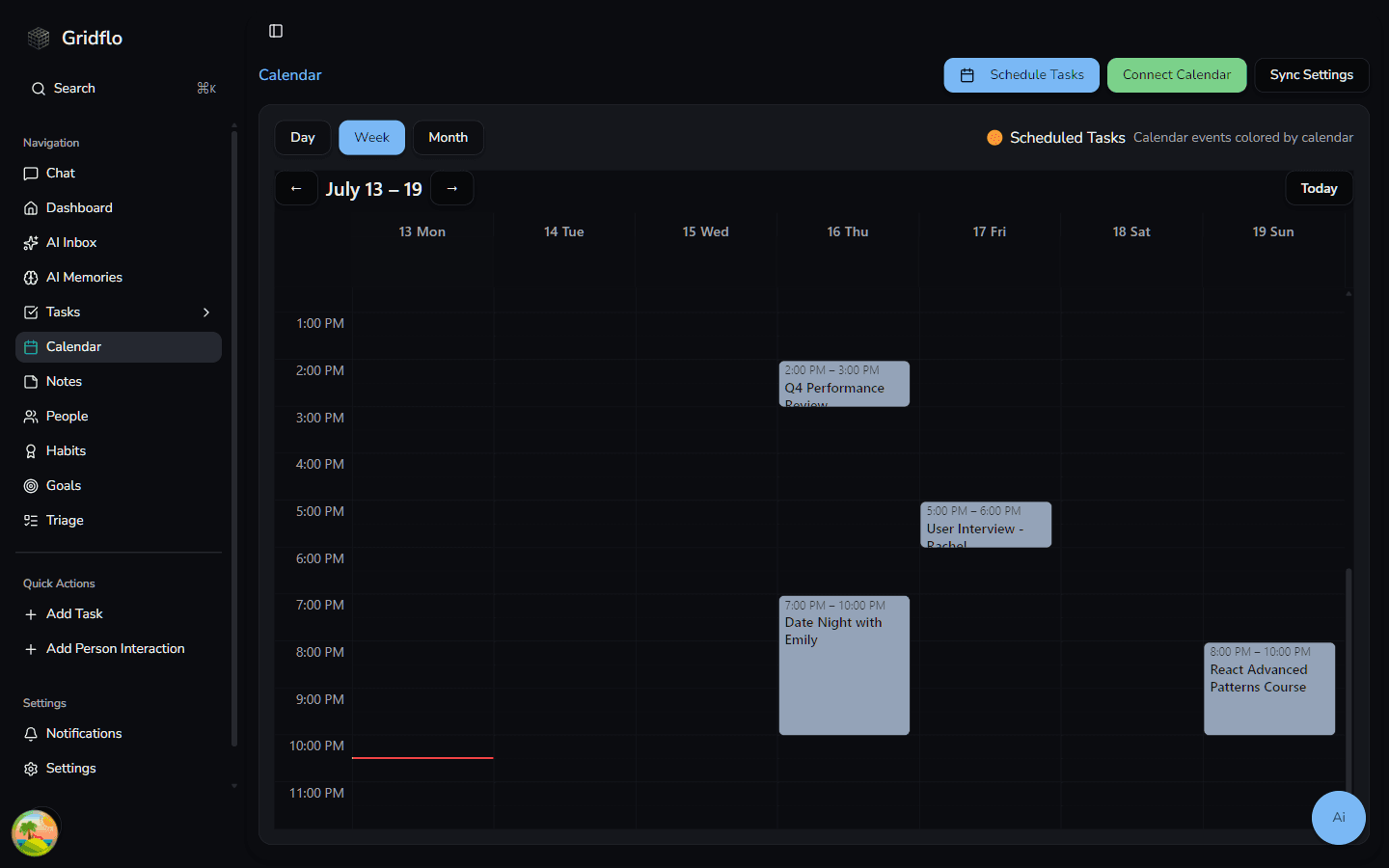
The Calendar brings your whole schedule into one place: events you create in Gridflo, events synced from Google Calendar, and time blocks that Gridflo schedules for your tasks. Open it from Calendar in the sidebar.
Switching views
Use the Day, Week, and Month buttons at the top left to change how much of your schedule you see. Weeks start on Monday, and the Day and Week views automatically scroll to the current time when you open them.
Navigating between dates
- Click the ← and → arrows next to the date label to move backward or forward.
- Click Today to jump back to the current day.
You can browse roughly three months into the past and three months into the future from today.
Events vs. scheduled tasks
The calendar shows two kinds of items, and the legend at the top helps you tell them apart:
- Calendar events — meetings and appointments, either created in Gridflo or synced from a connected calendar. Each calendar gets its own color, which you can change in Sync Settings.
- Scheduled Tasks — time blocks Gridflo creates for your tasks when you use Schedule Tasks. These are colored by task priority, and completed ones appear faded.
Calendar actions
The buttons in the top right are your starting points:
- Schedule Tasks — automatically block time for your tasks. See Schedule tasks on your calendar.
- Connect Calendar — link your Google Calendar. See Connect Google Calendar.
- Sync Settings — choose which connected calendars appear and how they sync.
To add something directly, just click an empty time slot — see Creating and editing events.