Organizing your notes
All of your notes live in the All Notes list on the left side of the Notes page. Click any note to open it in the editor on the right. As your collection grows, search, filters, sorting, and nesting keep everything easy to find.
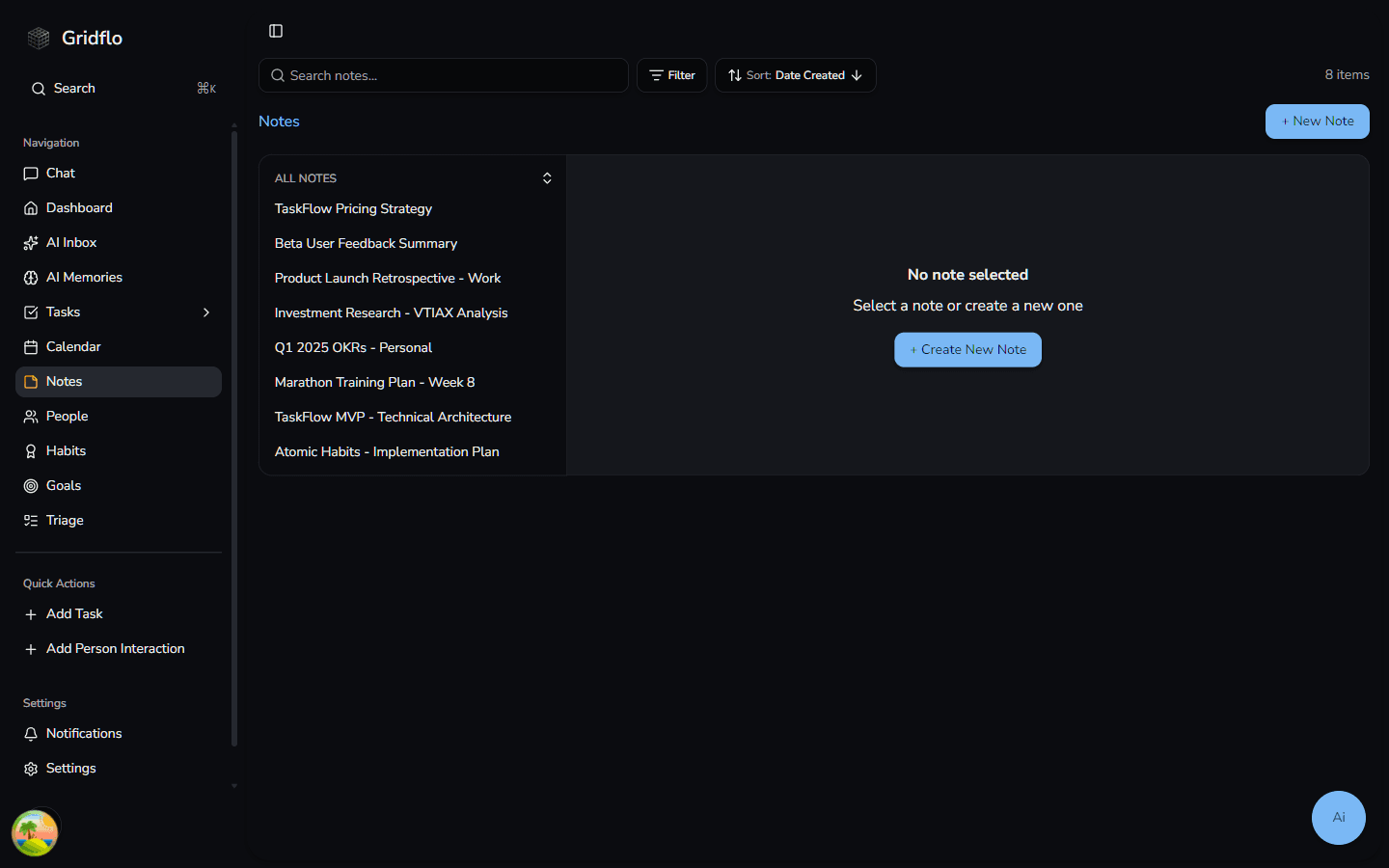
Search, filter, and sort
- Search: type in the "Search notes..." box to match against note titles, content, categories, and tags
- Filter: narrow the list by Tags, Category, Last edited (Today, This week, This month, Older), or Visibility (Public, Private)
- Sort: order notes by Date Created (the default, newest first), Last Edited, or Title
Nest notes inside each other
Notes can contain other notes, so you can build your own hierarchy — a "Projects" note with a note per project, a journal with monthly sections, and so on.
- In the All Notes list, click and hold the note you want to move
- Drag it onto another note — the target highlights as you hover
- Drop it to make it a sub-note of that note
To move a nested note back to the top level, drag it onto the "All Notes" heading at the top of the list. A few rules keep the structure tidy: notes can be nested up to 5 levels deep, and you can't drop a note into one of its own sub-notes.
If you delete a note that has sub-notes, the sub-notes aren't deleted — they move up to take the deleted note's place.
Expand and collapse
Notes with sub-notes show a chevron on their left — click it to expand or collapse that branch. To open or close everything at once, use the expand-all / collapse-all button next to the "All Notes" heading.
AI Note Organiser
The AI Note Organiser analyses your notes and proposes a hierarchy — grouping related notes under existing or new parent notes. Open Notes and click Organise notes to generate a draft arrangement.
The organiser shows a staging view you can edit before anything is saved:
- Drag notes or groups to move them within the proposed tree
- Click a group title to rename it
- Colour coding shows what would change — new containers are highlighted in blue, renamed or moved notes in amber, and unchanged notes in grey
Click Apply to commit the arrangement to your library, or close the organiser to discard the draft. Notes already nested under a parent are left in place — the organiser only assigns notes that don't yet have a home.
Nesting is one way to organize; tags and links are another. See Tags and links to connect notes to the rest of your workspace.