Projects and boards
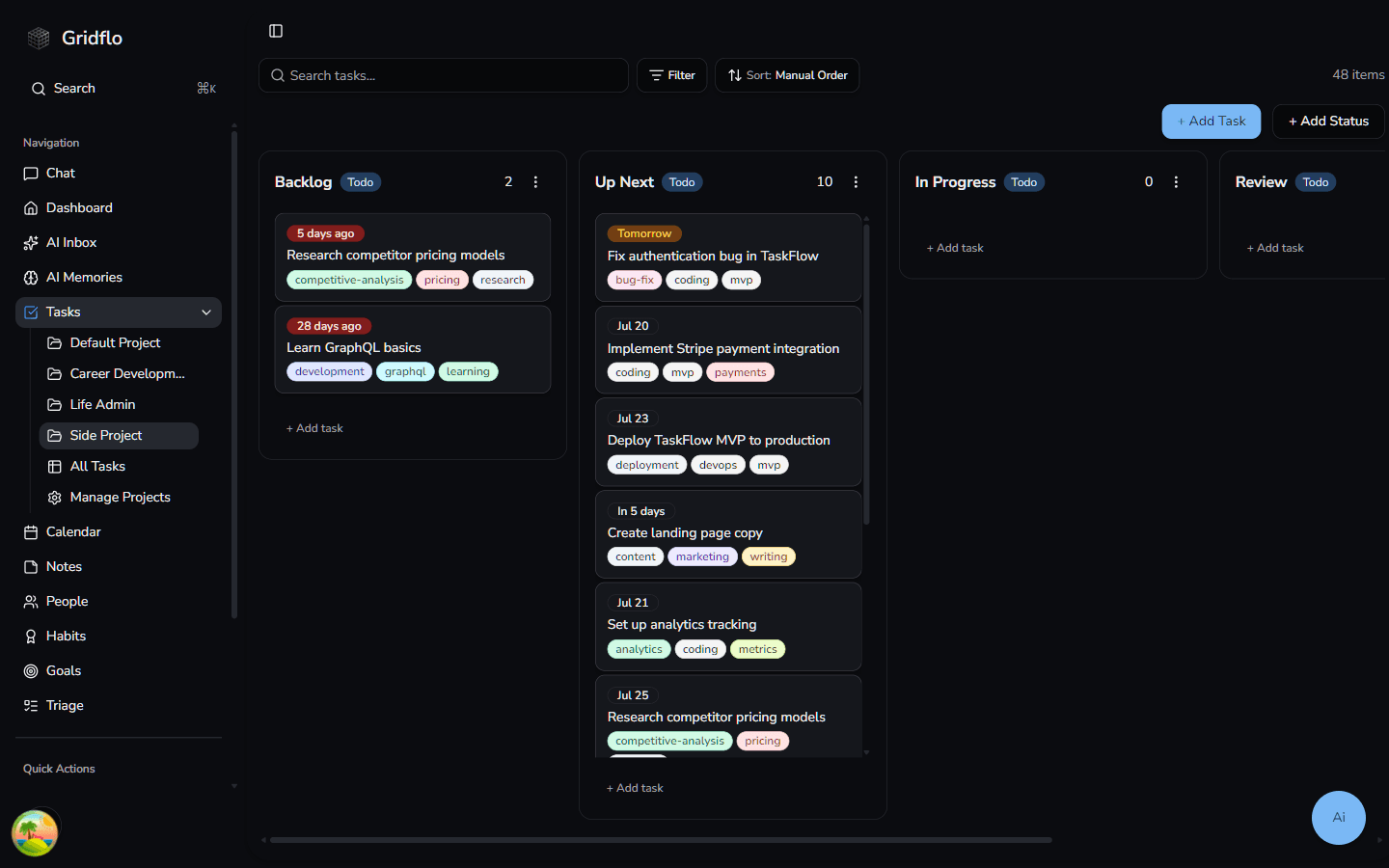
Every task in Gridflo lives in a project, and every project is a kanban board. Expand Tasks in the sidebar to see all your projects — click one to open its board.
Working the board
The columns on a board are the project's statuses — for example Backlog, Up Next, In Progress, Review, and Done. As work moves along, drag a task from one column to the next. Dropping a task into a done column marks it complete automatically, and moving it back out reopens it.
- Click + Add Task to create a task directly on this board.
- Click + Add Status to add a new column when your workflow needs an extra step.
- Use the search, filter, and sort controls above the board to narrow down what you see.
Task cards show useful details at a glance, like due-date chips and colored tags, so you can scan a column quickly.
All Tasks
At the bottom of the Tasks submenu, All Tasks shows every task from every project in a single list, with its own search, filtering, and sorting. It's the best place to review everything on your plate regardless of which project it belongs to.
Manage Projects
Click Manage Projects in the Tasks submenu to create new projects, rename existing ones, or delete projects you no longer need. New accounts start with a Default Project, so you can begin adding tasks before setting anything up.
Next, learn how to create tasks with all their details, or set up scheduling and priorities to plan your week.