Creating habits
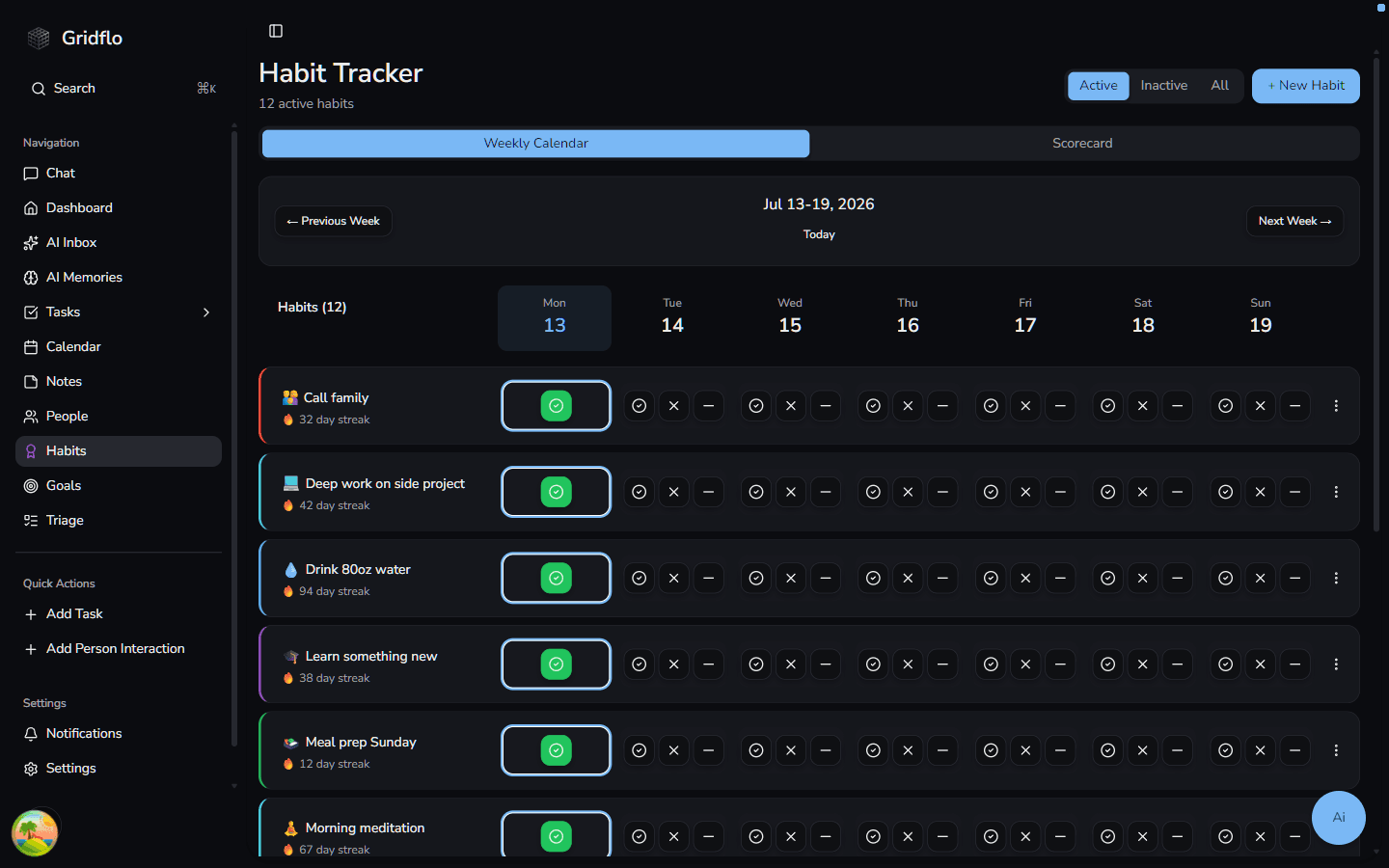
The Habit Tracker is where you build routines you want to stick to — anything from drinking more water to a daily writing session. Every habit you create appears as a row on a weekly calendar grid, so you can see your whole week at a glance.
Create a new habit
- Open Habits from the sidebar
- Click + New Habit in the top-right corner
- Give it a name in the Habit Name field, e.g. "Drink 8 glasses of water"
- Fill in any of the options below, then click Create Habit
Habit options
- Description — optional notes about the habit
- Icon — pick an emoji that shows next to the habit name on the grid
- Color — color-codes the habit's row in the weekly calendar
- Target Frequency — choose Daily, or Weekly with a "Target days per week" number (1–7). A weekly habit counts as on track when you hit that many days in a week
- Category — Health & Fitness, Productivity, Learning, Social, Creativity, Mindfulness, or Other
- Active Period — an optional start and end date. Once the end date passes, the habit becomes inactive and drops out of your active list
The weekly calendar grid
Your habits are listed down the left, with the seven days of the current week across the top — today's column is highlighted. Each habit row shows its icon, its color, and its current streak. Use the Active, Inactive, and All tabs to filter which habits are shown, and the three-dot menu on any row to Edit, Deactivate, or Delete a habit. Deleting a habit permanently removes all of its tracking data.
Once your habits are set up, learn how to check off days and keep streaks alive in Tracking habits and streaks.